

Time:2025.12.04Browse:1
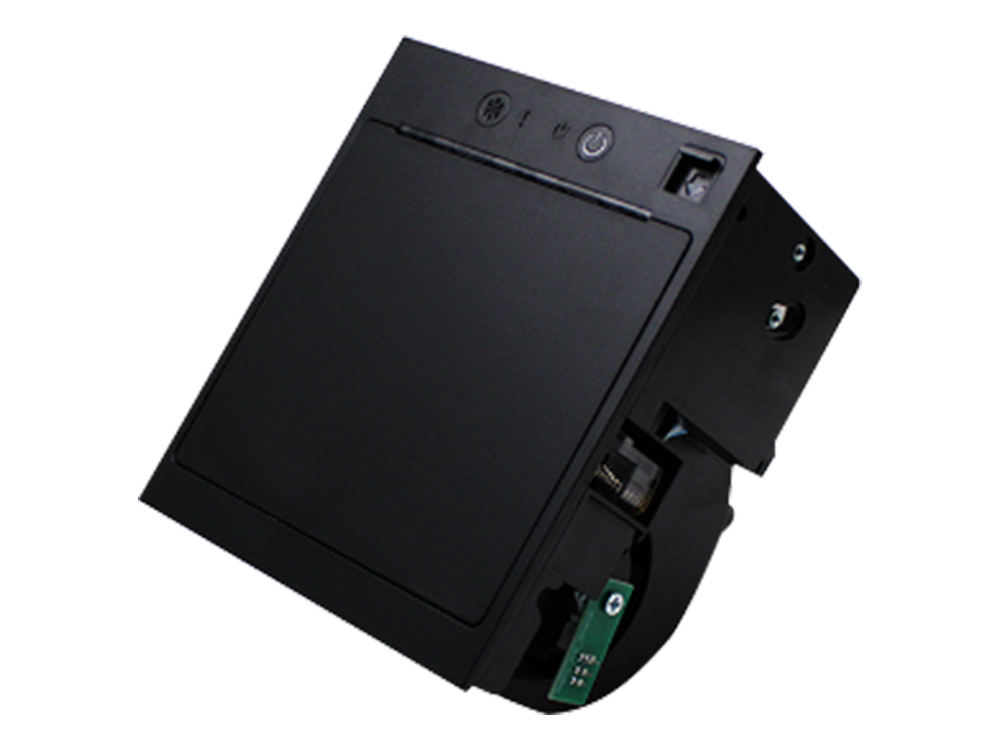
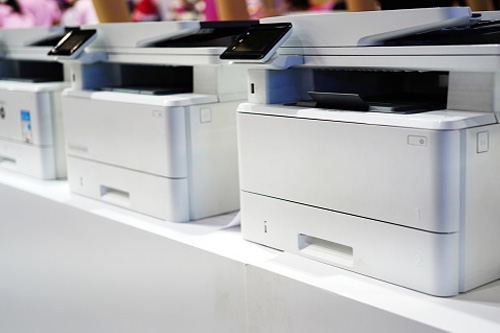
When a printer produces output with an unwanted dark background, black smudging, or an overall dark tint instead of crisp, white negative space, it indicates a critical issue within the imaging or transfer systems. This is often referred to as "black background" or "ghosting" and is particularly common in laser printers, though inkjet printers can also exhibit similar overly dark or muddy output due to saturation problems. Effective troubleshooting requires identifying whether the fault lies with the toner/ink, the imaging drum, the fuser unit, or the software settings.
In laser printers, a pervasive black background is frequently a sign of an issue with the imaging drum or the charging system. The drum must be properly cleaned and neutralized (discharged) after each cycle to present a perfectly neutral, non-charged surface for the next image. If the Primary Charge Roller (PCR) or the cleaning blade malfunctions, the drum surface may retain a residual negative charge or residual toner, causing it to attract fresh toner across the entire surface, resulting in a dark background. The first step should be to inspect and possibly replace the toner cartridge and drum unit, as these are often integrated components. If the problem persists, the voltage bias applied to the drum or the toner development roller may be incorrect, leading to over-development of the toner across the non-image area.
Another potential cause, especially in older or poorly maintained laser printers, is a toner density setting that is far too high, or a sensor that is inaccurately reading the toner concentration. Many laser printers allow users to adjust the Print Density in the software driver or the printer's control panel. If this is set to maximum, the result will be an overly dense, dark output that consumes toner excessively. Resetting the density to a default or lighter setting can often resolve this issue instantly. If the problem appears as repetitive dark lines or "ghosting," it might indicate a dirty transfer roller or a faulty fuser assembly that is not properly fusing and cleaning the image.
For inkjet printers, a dark or muddy output, while less common than a pure black background, can be caused by oversaturation due to an incorrect paper profile setting. If the user selects a profile for plain office paper but is printing high-resolution images onto thick photo paper, the printer might lay down an excessive amount of ink, leading to bleed and an overall dark, muddy appearance. The immediate fix is to ensure the Media Type selected in the print driver precisely matches the paper loaded in the tray. If the issue is a sudden black streak, it likely relates to a clogged or damaged print head nozzle or a physical obstruction inside the printer. Systematic troubleshooting requires checking software settings first, then inspecting and replacing imaging consumables (toner/drum), and finally diagnosing internal hardware components.
Read recommendations:





Building C, Bairongda, Ma'anshan, Bao'an District, Shenzhen City, Guangdong Province
Tel:18823301751
Service Hotline:400-008-8930



















 2025-04-19