

Time:2025.10.23Browse:1
Adjusting the size of scanned files is an important aspect of using a printer's scanning function, as it allows users to optimize the file for different purposes, such as storage, emailing, or sharing. There are several methods available to adjust the size of scanned files, and the specific approach may vary depending on the printer model and the scanning software used.
One of the most straightforward ways to change the scanned file size is by adjusting the resolution of the scan. Resolution is measured in dots per inch (dpi), and a higher dpi setting will result in a larger, more detailed scanned image, while a lower dpi setting will produce a smaller, less detailed file. When using the printer's scanning software, look for the resolution settings option, which is usually located in the scan settings menu. For example, if you are scanning a document for simple text - based viewing or emailing, a resolution of 150 - 200 dpi may be sufficient and will result in a relatively small file size. On the other hand, if you need a high - quality scan for printing or detailed image analysis, you can increase the resolution to 300 dpi or higher, although this will significantly increase the file size.
Another factor that affects the scanned file size is the file format. Different file formats have different levels of compression, which can greatly impact the size of the scanned file. Common file formats for scanned documents and images include PDF, JPEG, TIFF, and PNG. PDF is a popular format for scanned documents as it offers good compression and preserves the document's layout. JPEG is widely used for scanned images and provides high compression, resulting in relatively small file sizes, but it may lose some image quality due to its lossy compression nature. TIFF and PNG are lossless formats, meaning they retain all the original data but usually produce larger file sizes. When scanning, choose the appropriate file format based on your needs. If you prioritize file size and don't require the highest image quality, JPEG or a compressed PDF format may be suitable. For archiving or when maintaining image integrity is crucial, TIFF or PNG might be a better choice.
Some scanning software also offers additional options for further reducing file size, such as adjusting the color depth (for color scans). Reducing the color depth from 24 - bit (true color) to 8 - bit (256 colors) can significantly decrease the file size, especially for images with less color variation. Additionally, cropping the scanned image to remove any unnecessary white space or unwanted areas can also reduce the file size. By carefully adjusting these settings - resolution, file format, color depth, and cropping - users can effectively control the size of scanned files from their printers, making it easier to manage, store, and share scanned documents and images.
Read recommendations:
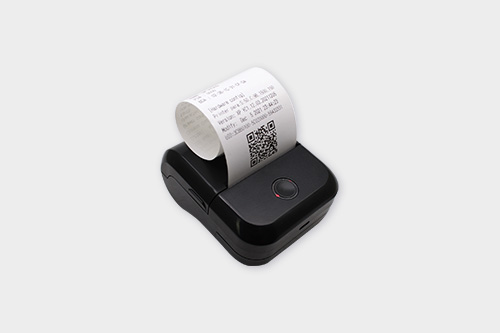
Mobile Printer TTL Interface Compatible with Android Devices





Building C, Bairongda, Ma'anshan, Bao'an District, Shenzhen City, Guangdong Province
Tel:18823301751
Service Hotline:400-008-8930











 2025-09-04